A comprehensive guide to mastering the Chronicle authoring environment. Learn how to navigate the studio,
seamlessly transition between Studio, Minimalist, and Typewriter Zen writing modes, map complex multi-strand
timelines, track cast screen time, and publish print-ready books.
Chapter 01
Getting Started with Chronicle
Local-first principles, loading projects, and managing files
Chronicle is an all-in-one authoring and publishing suite built exclusively for novelists, storytellers, and long-form prose writers. Unlike subscription cloud platforms, Chronicle is 100% local-first and guarantees that your stories are never uploaded to remote servers or harvested for AI training models.
Starting with Sample Manuscript
When launching Chronicle for the first time, click "Open Sample Project" on the welcome screen. This loads a complete pre-configured edition of Alice's Adventures in Wonderland, populated with chapters, character dossiers, timeline events, and cast presence data for hands-on experimentation.
Creating or Importing a Book
Click "New Project" to start fresh with a clean chapter structure, or drag and drop any standard .md / .markdown, .epub, or .chronicle project file anywhere into the window. Markdown manuscripts automatically split into chapters based on top-level headings (#), parsing YAML frontmatter, tables, and images seamlessly.
Cross-Platform Desktop & Web
Chronicle runs natively across Windows (portable .exe), macOS (universal .dmg for Apple Silicon & Intel), and Linux (portable universal .AppImage, .deb, and .rpm), as well as directly inside any modern web browser with offline IndexedDB storage.
Transparent Open Formats Guarantee
When saving via Ctrl+S, Chronicle exports a standard .chronicle package. This is a clean, unencrypted ZIP file containing standard XHTML chapter files, pure CSS stylesheets, and readable JSON metadata. Your creative work is never locked into proprietary binary formats.
Chapter 02
The Studio Interface & Navigation
Workspace anatomy, views, binder hierarchy, and telemetry
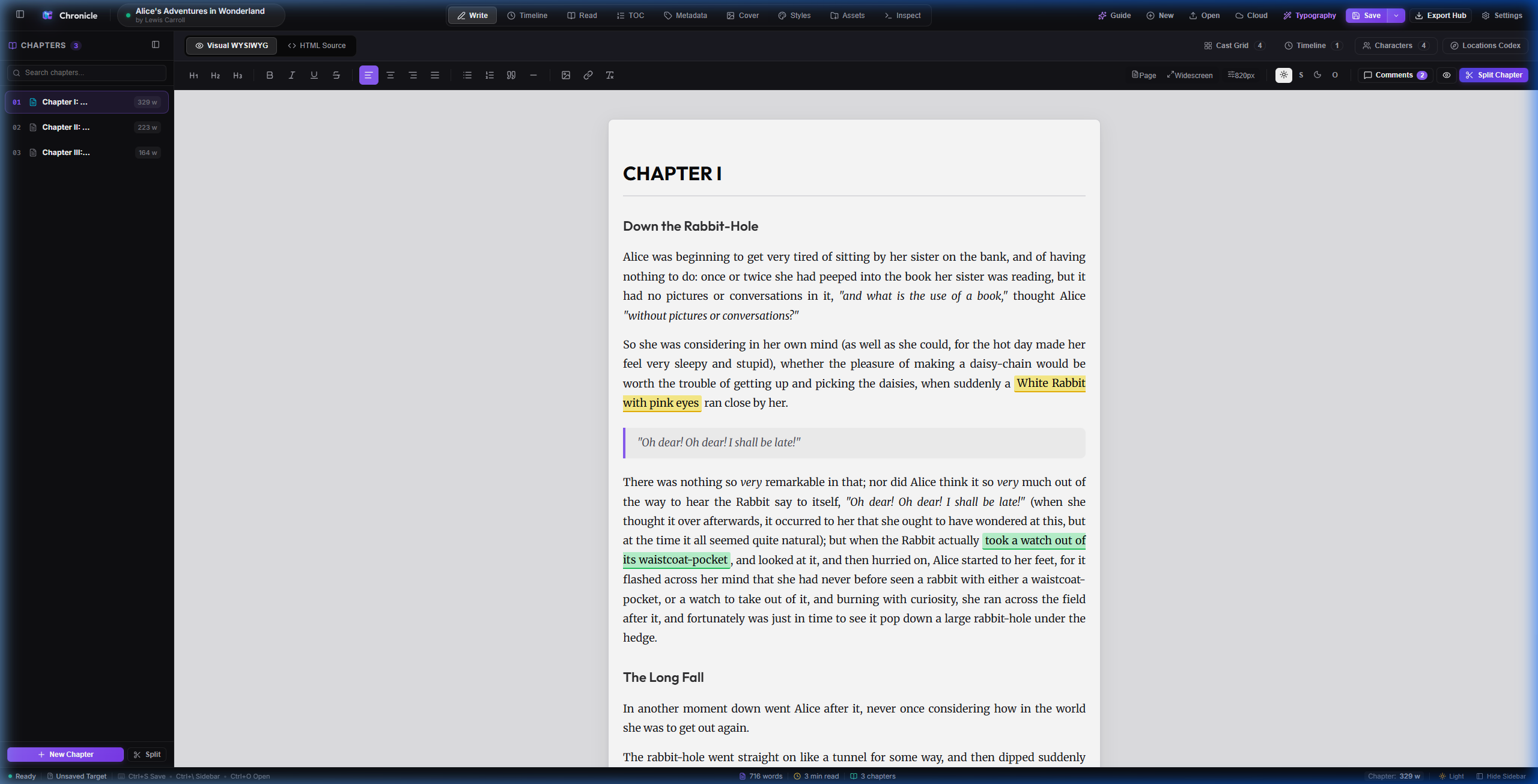
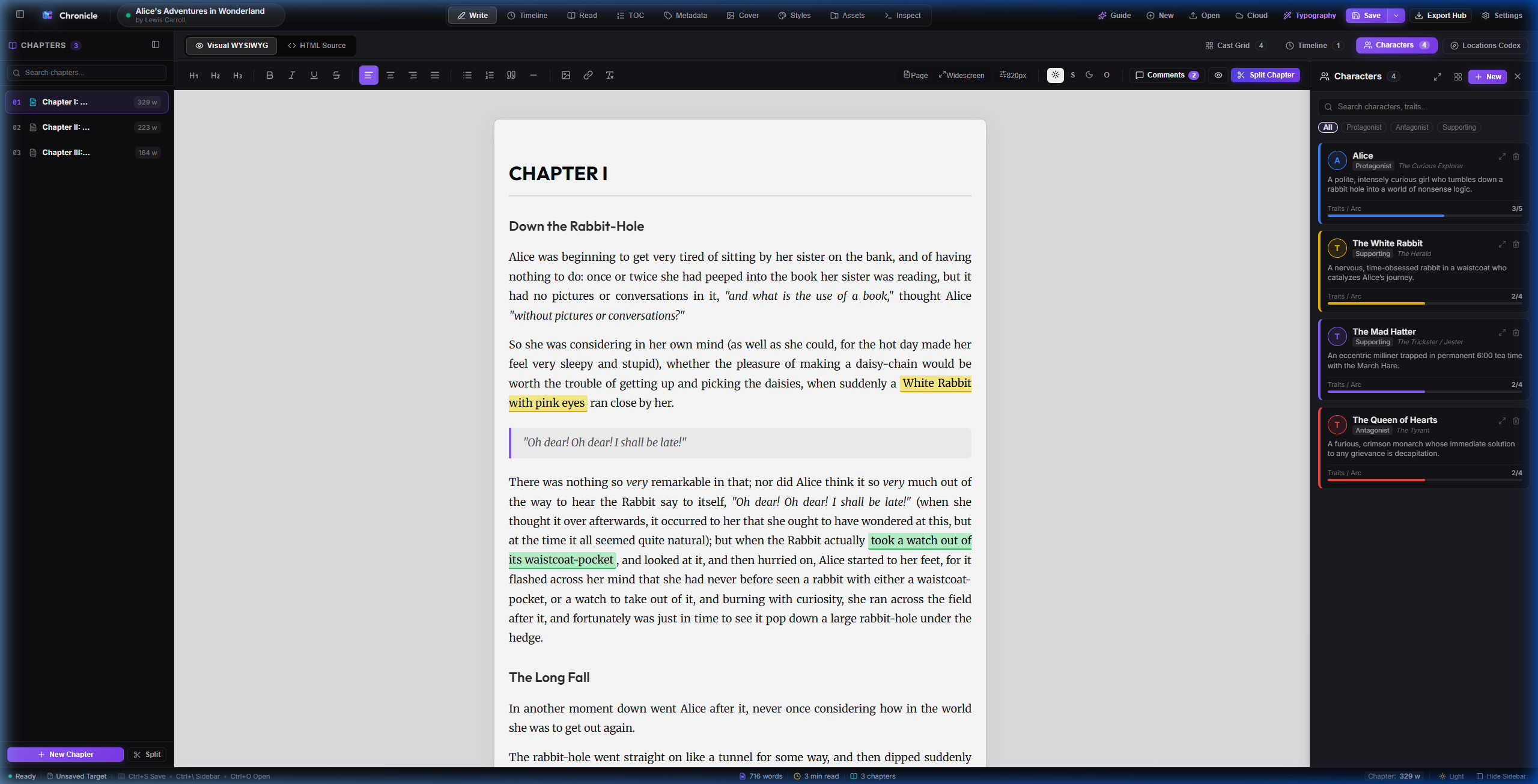
Chronicle's primary workspace is divided into four functional zones: the Top Header, the Chapter Binder Sidebar, the central Manuscript WYSIWYG Editor, and the Bottom Status Bar.
Figure 2.1: The default Studio Mode view showing the Top View Switcher tabs, Chapter Binder on the left, WYSIWYG writing canvas in the center, and live session word telemetry at the bottom.
1. The Top Navigation Header & 3 Core Workspaces
Chronicle structures your writing and worldbuilding into 3 Primary Workspaces, each paired with a dedicated contextual sub-navigation bar:
✍️ Write (Creative Authoring Workspace): Houses the visual WYSIWYG Editor, distraction-free Reader view with neural TTS audio playback, and deep EPUB package Inspector.
🗺️ Knowledge Base (Worldbuilding & Narrative Intelligence): Houses the visual Timeline plotting matrix, chapter-by-chapter Presence Grid heatmaps, Character dossiers, and Location Codex.
📚 Publish (Production & Distribution): Houses the vector Cover Studio, custom Styles & CSS editor, hierarchical Table of Contents, Dublin Core Metadata, Assets manager, and the master Export Hub.
2. The Chapter Binder Sidebar
Located along the left margin, the Chapter Binder manages your manuscript's narrative spine:
Adding & Reordering Chapters: Click the + icon to append new chapters, or drag and drop chapter cards vertically to restructure your manuscript order.
Chapter Word Badges: Each chapter card displays live word count stats so you can audit pacing across act breaks.
Quick Toggle: Press Ctrl+\ at any time to collapse the binder and expand the central manuscript canvas.
3. The Bottom Status Bar
The status bar provides non-intrusive, live writing telemetry: total manuscript words, current chapter word count, selected text metrics, reading time estimations, and today's writing velocity (+X words today).
Chapter 03
Distraction-Free Modes: Studio, Minimalist & Typewriter Zen
How to choose and toggle between authoring environments
Chronicle recognizes that writing requires different mindsets. Outlining, structuring, and research benefit from multi-pane telemetry, whereas drafting prose demands complete silence. Chronicle provides three calibrated focus tiers:
1. Studio Mode (Full Suite)
The full authoring command center. Displays all top navigation tabs, the chapter binder, telemetry status bars, and floating utility drawers. Perfect for worldbuilding, scene splitting, and structural editing.
2. Minimalist Mode (Alt+M)
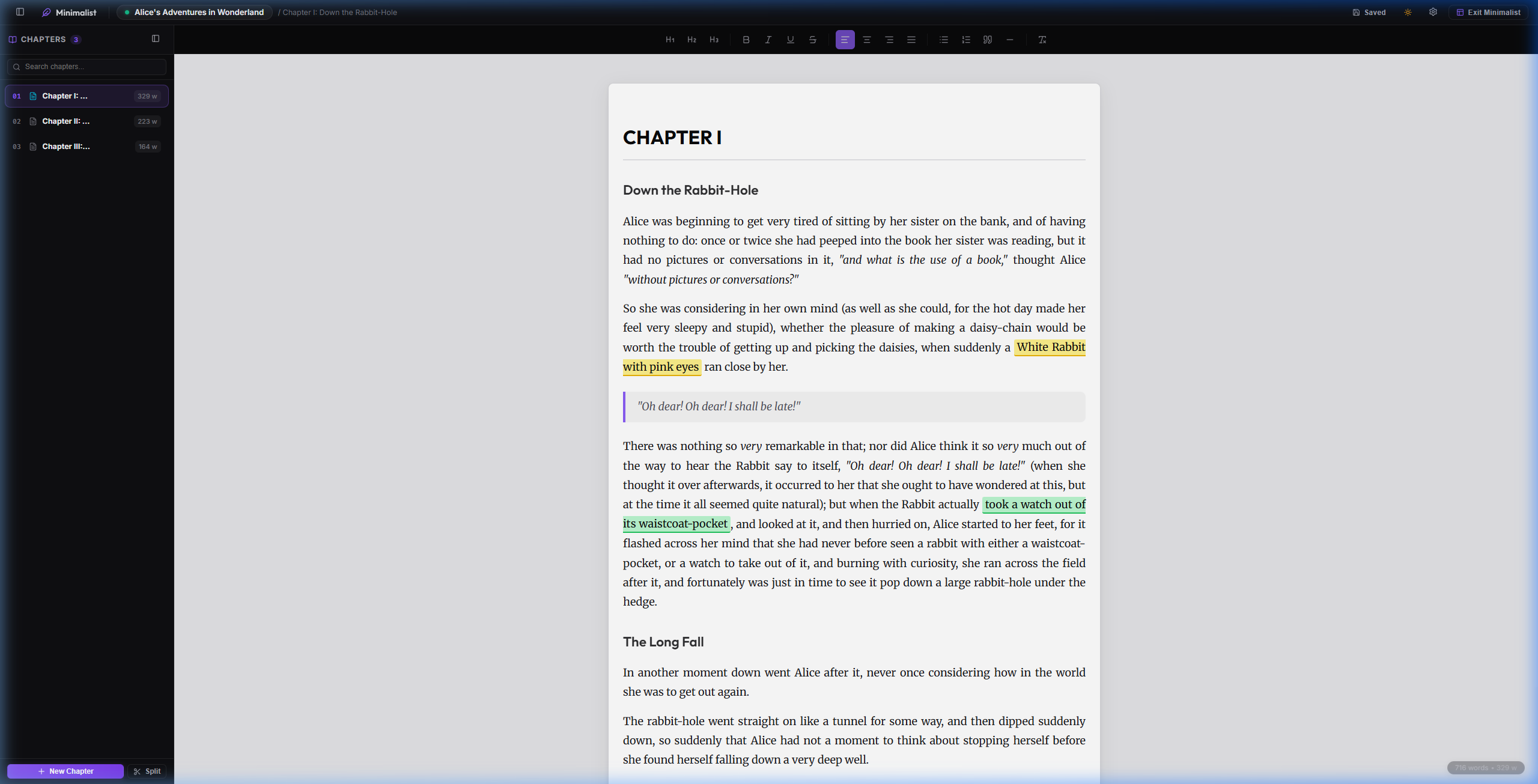
Conceals secondary toolbars, sidebars, and status bars while retaining essential top navigation. Gives your manuscript room to breathe while keeping view switching one click away.
Figure 3.1: Minimalist Mode (Alt+M) active. The sidebars and status telemetry are hidden, presenting a clean writing canvas with an unobtrusive "Exit Minimalist" badge.
3. Typewriter Zen Mode (Alt+Z)
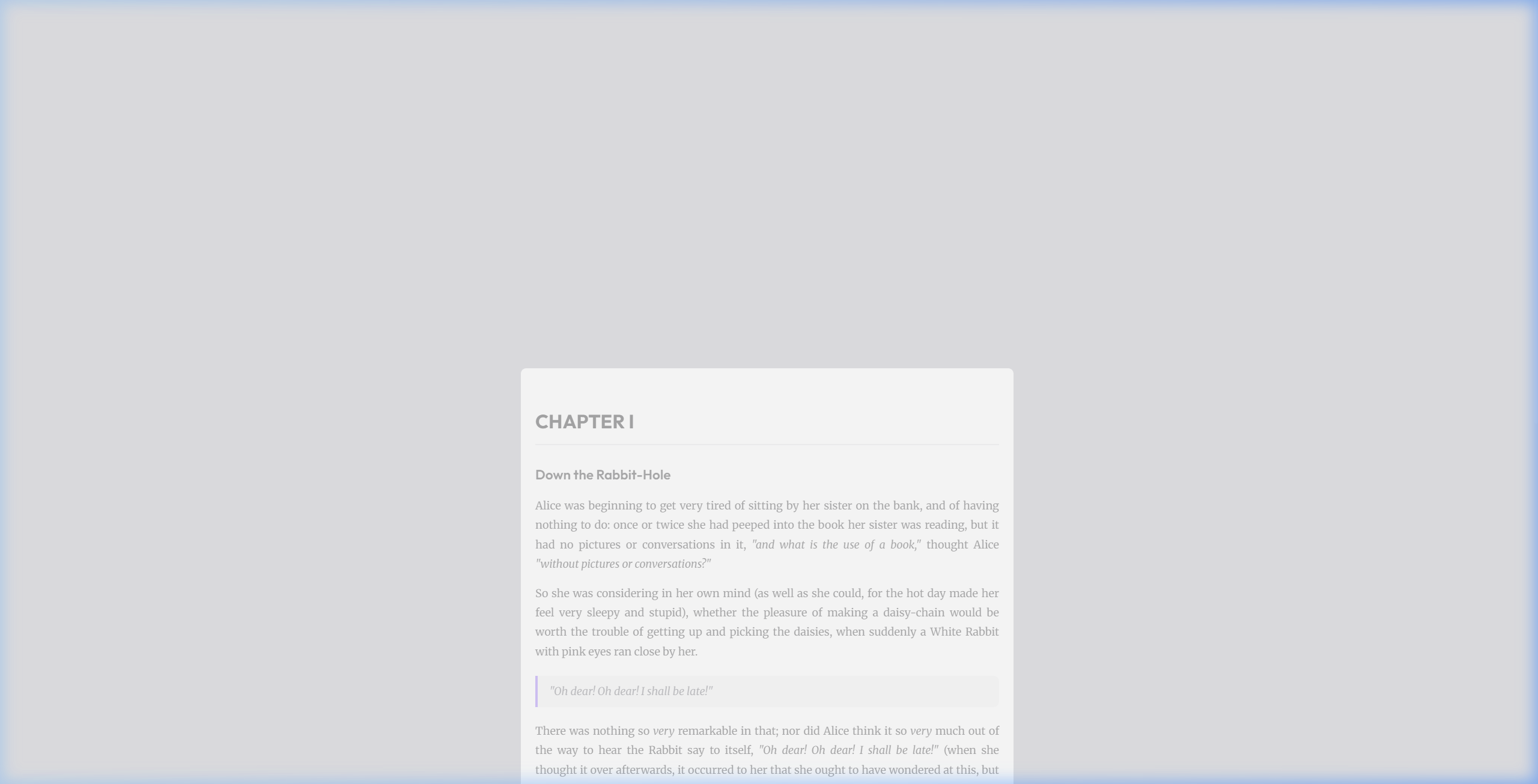
Zen Mode is Chronicle's ultimate deep-work environment. It completely unmounts all window chrome, sidebars, borders, and menus for a 100% distraction-free creative session.
Figure 3.2: Zen Mode (Alt+Z). Zero window chrome, eye-level centered text, paragraph focus dimming, and an interactive Ghost HUD that only awakens upon mouse movement.
The 4 Core Zen Mechanics:
1. Typewriter Scrolling: Keeps the active sentence vertically locked at natural eye-level in the center of your monitor as text scrolls upwards beneath it, preventing neck and shoulder fatigue during multi-hour marathons.
2. Paragraph Focus Dimming: Softly fades all surrounding paragraphs to 35% opacity while brightly spotlighting only the active paragraph where your cursor rests.
3. The Ghost HUD: Pure zero-UI while writing. Moving your mouse reveals a floating translucent frosted-glass capsule displaying live words written today, active chapter, and a chapter navigator menu to switch scenes without leaving Zen mode.
4. Hide Comments & Highlights: Automatically conceals margin comment cards and text highlights in Zen mode so editorial review notes don't disrupt drafting flow.
Auto-Switch on Typing
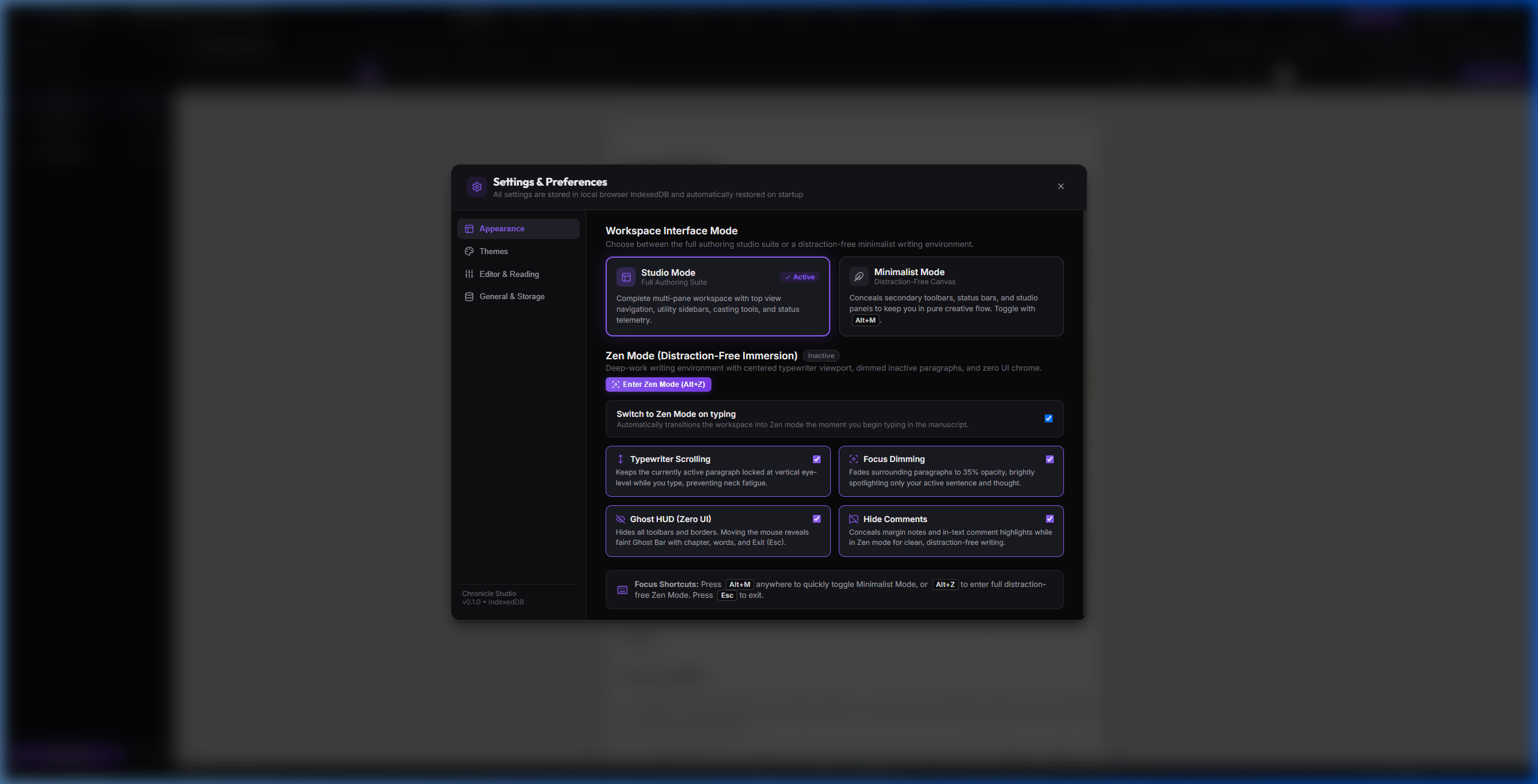
In Settings > Appearance, you can enable "Switch to Zen Mode on typing". With this option active, Chronicle automatically enters Zen mode the moment your fingers start typing in the manuscript, and returns to Studio mode when you hit Esc.
Chapter 04
Version Snapshots & Git-Style Diff Studio
Milestone restore points, side-by-side comparison, and 1-click cherry-pick restore
Authors frequently face moments of creative hesitation: "What if this complete rewrite of the climax is worse than my original draft?" Chronicle eliminates this anxiety with Project Snapshots and a dedicated Side-by-Side Git-Style Diff Studio. Take frozen, instant milestones before daring revisions, compare any snapshot with your active working manuscript, and restore chapters, whole paragraphs, or individual words with a single click.
1. Creating Milestone Snapshots
Click "Snapshots" in the top header or press the snapshot shortcut to capture your entire creative state—all manuscript chapters, character dossiers, story timelines, world codex entries, and metadata. Give your snapshot a descriptive label like "Pre-Editor Revisions" or "Draft 2 - Alternate Ending".
2. Selective Module Restoration
Unlike traditional all-or-nothing backups, Chronicle lets you cherry-pick which project modules to restore. If you rewrote chapter prose but accidentally ruined your character profiles or timeline arcs, you can selectively restore only the Timelines or only Character dossiers while leaving your manuscript untouched.
Side-by-Side Chapter Diff & Merge Studio
Click the "Compare" button on any snapshot card to enter the full-screen Git-style Diff Studio. Chronicle loads your manuscript chapter-by-chapter into an interactive split view:
Left Pane (Current Working Draft): Shows your live manuscript text cleanly formatted, with line and paragraph markers (P1, P2, ...), so you can evaluate how your current draft reads.
Center Action Gutter: An interactive column featuring 1-click [← Restore] buttons aligned with every modified or inserted paragraph.
Right Pane (Snapshot Version): Displays the archived snapshot version with syntax-grade color highlights—additions in emerald green, deletions in rose red, and intra-paragraph word-level diffs.
Intra-Paragraph Word-Level Restore: If a paragraph contains multiple edits, hovering over any changed word or phrase reveals a floating [← Restore] micro-action pill. Clicking it restores only that individual change into your live draft while leaving the rest of the paragraph untouched.
Dedicated Chapter Sidebar: Easily navigate manuscripts with 50+ chapters using the search bar and the "Changed (N)" filter tab to focus strictly on modified scenes.
Batch Restore & Local Undo: Restore an entire chapter with "← Restore All Snapshot Changes", or undo any restored change using the multi-step "Undo Restore" stack.
Live Editor Synchronization
Every restored paragraph or word immediately synchronizes with Chronicle's live WYSIWYG editor DOM and active book session. When you close the Diff Studio, your editor reflects the restored text with zero reload delay.
Chapter 05
Settings, Themes & Workspace Customization
Adjusting interface aesthetics, paper tones, and WebDAV cloud storage
Press Ctrl+, or click the gear icon in the header to open the expanded Settings dialog. The preferences interface is split into dedicated sections for Appearance, Themes, Cloud Storage, Editor defaults, and Diagnostics.
Figure 4.1: The Appearance Settings section, showing workspace mode toggles, Zen auto-switch preferences, and the 4 interactive focus mechanics cards.
Application UI Themes vs. Manuscript Paper Tones
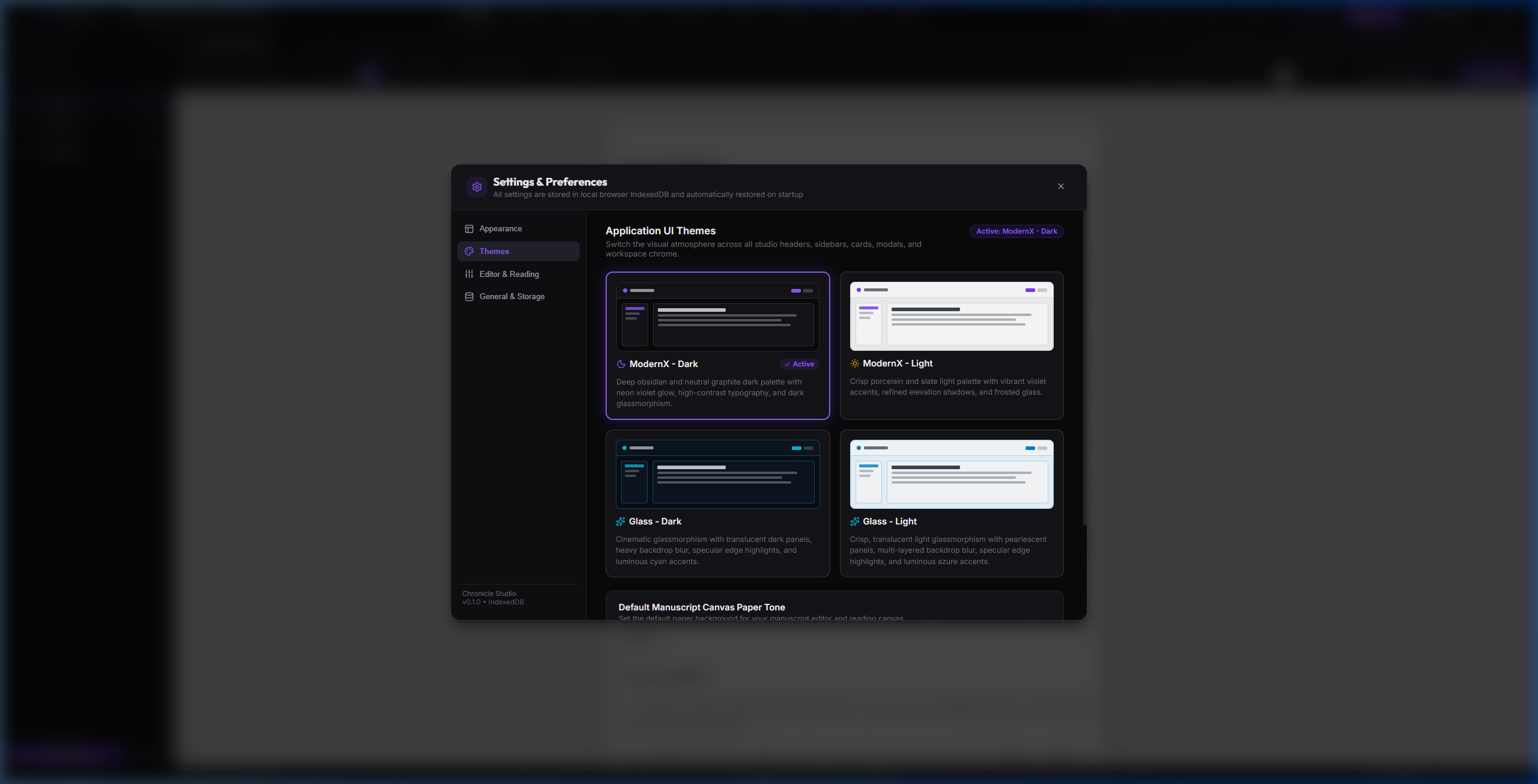
Chronicle uniquely decouples your studio window chrome theme from your manuscript canvas paper tone. You can compose inside a sleek, focused obsidian or modern dark studio while keeping your manuscript on warm sepia or high-contrast crisp white paper.
Figure 4.2: The Themes Settings section, featuring live UI theme preview cards and quick-switch swatches for default manuscript canvas paper tones.
Classic Dark (Default): Nocturnal sanctuary aesthetic with warm candlelight gold accents and architectural corners.
Classic Light: Crisp literary alabaster and manuscript paper aesthetic with rich cognac gold accents.
ModernX Dark: Deep obsidian graphite surfaces with violet neon accents, tailored for low-light night drafting.
ModernX Light: Crisp porcelain and slate surfaces with refined violet accents for daytime authoring.
Glass Dark & Light: Translucent frosted glassmorphism with specular highlights and luminous azure glow.
Paper Tones: Choose between Warm Light, Antique Sepia, Night Charcoal, and Deep Obsidian backdrops for the editor canvas.
Chapter 06
Visual Narrative Timeline Studio
Multi-strand narrative plotting, story beats, and character collision prevention
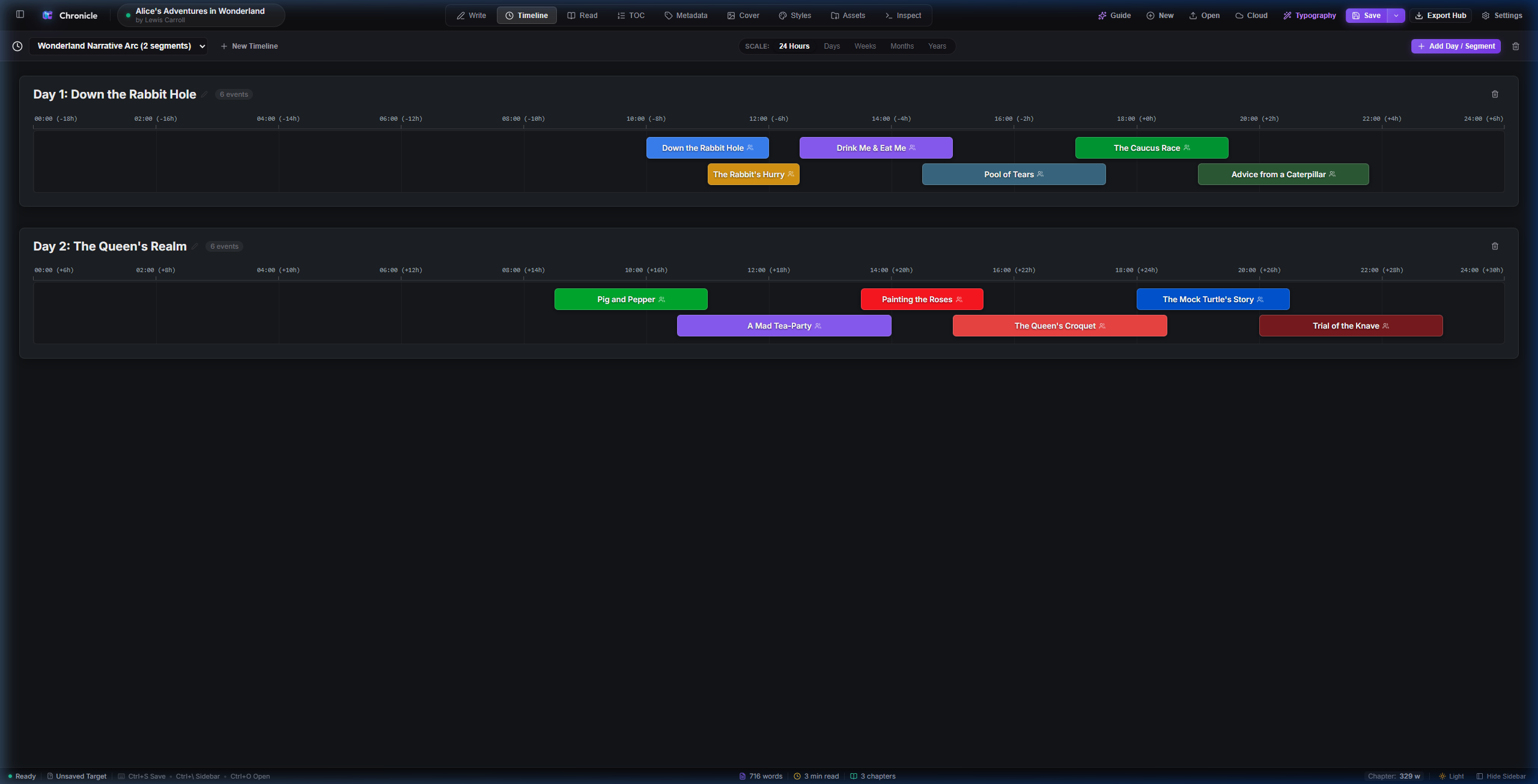
Click the "Timeline" tab in the top navigation to access Chronicle's visual narrative plotting matrix. Unlike linear text outlines, Chronicle arranges story events across parallel horizontal track lanes, allowing you to track A-plots, subplots, and character perspectives simultaneously.
Figure 5.1: Timeline Studio overview displaying multi-track event lanes, narrative segments (Day 1, Day 2), character tags, and zoom controls.
How to Create and Manage Timelines:
1. Create Narrative Segments
Click "+ New Segment" to establish milestones (e.g., "Act I: The Rabbit Hole", "Day 2: The Queen's Realm"). Each segment defines a temporal container with its own start offset and zero-hour calibration.
2. Add & Position Story Events
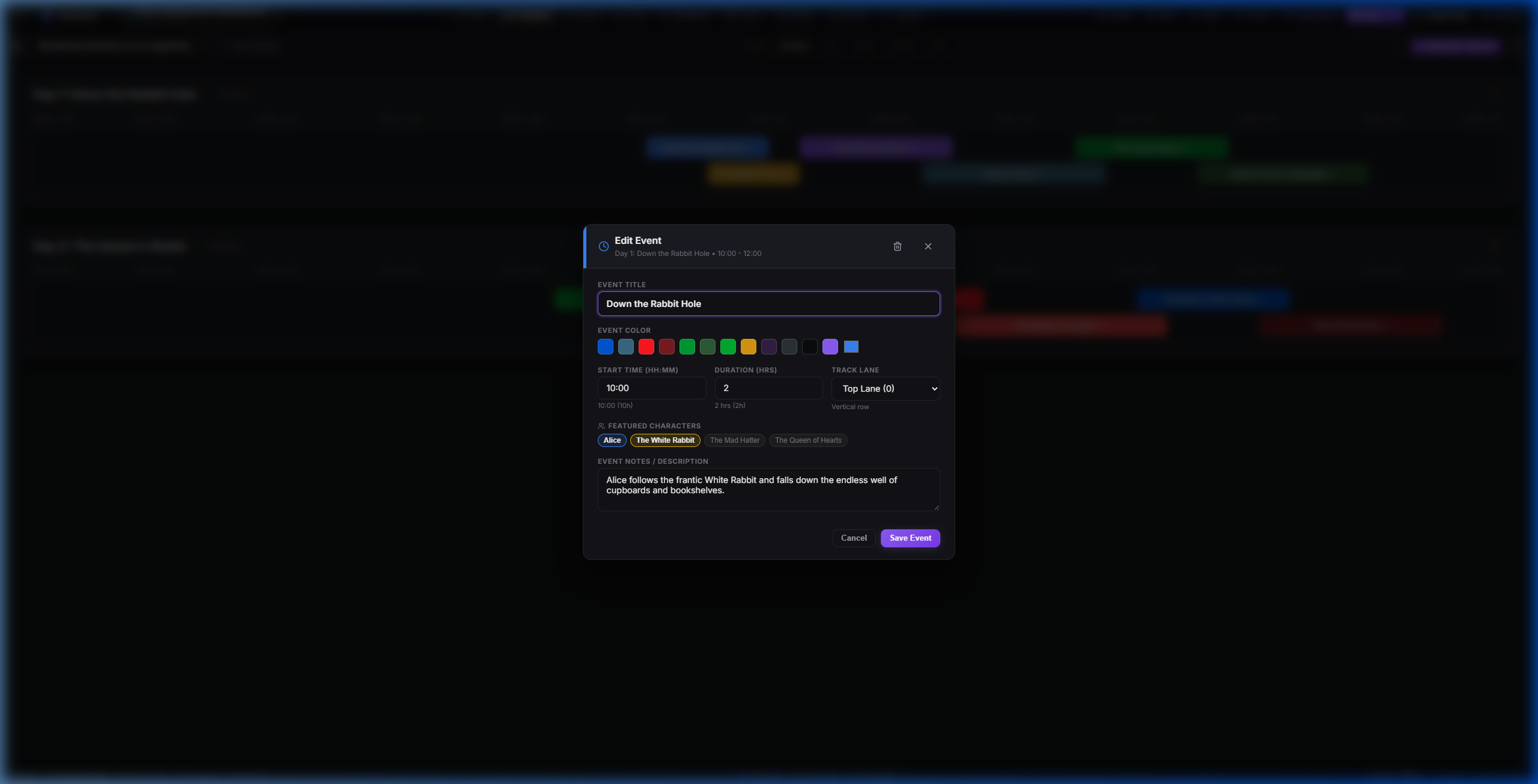
Click "+ Add Event" inside any segment to place a plot event card. Specify start time, duration, track lane (0, 1, 2...), narrative summary, and assign participating characters from your Codex.
Figure 5.2: Editing a story event card, configuring title, duration, track lane, color themes, and linked characters.
Continuity & Collision Avoidance
By assigning parallel events to distinct vertical lanes, Chronicle makes impossible character overlaps instantly visible—such as a character appearing in two distant locations at the same hour—before you spend weeks writing yourself into a corner.
Chapter 07
Presence Grid
Analyzing character density, screen time balance, and scene appearances
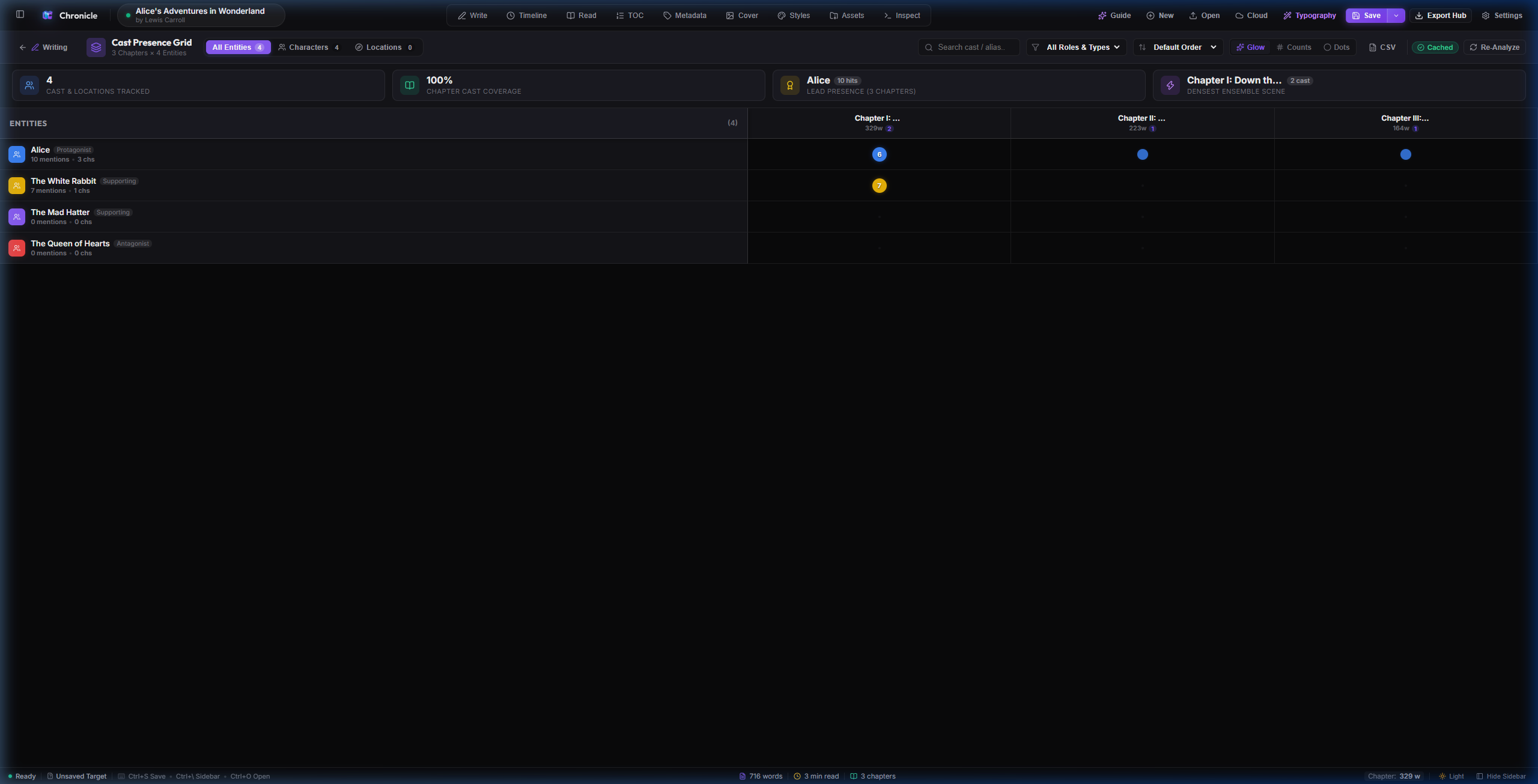
Click "Presence Grid" in the top navigation to view Chronicle's presence density matrix. The grid scans your entire manuscript and compiles a chapter-by-chapter heatmap showing where characters appear and how frequently they are referenced.
Figure 6.1: Presence Grid with chapter columns along the X-axis and characters along the Y-axis. Circular color nodes illustrate mention density across scenes.
How to Use the Presence Grid:
Audit Screen Time: Glowing nodes visually highlight which characters dominate each scene. Instantly spot if your antagonist disappears for 5 consecutive chapters or if a subplot character is introduced too late.
Presence Display Toggles: Switch between Glow (pulsing heat bubbles), Counts (exact in-text mention numbers), and Dots (compact presence indicators).
Click-to-Inspect Dialogue: Clicking any active node displays dialogue excerpts and passage references, with a one-click button to jump directly to that chapter in the editor.
Export Cast Telemetry: Click Export CSV/TSV in the toolbar to export the matrix to Excel, Google Sheets, or Numbers for editorial analysis.
Chapter 08
Worldbuilding Codex: Characters & Locations
Dossiers, psychological traits, sensory notes, and landmark checklists
Click "Characters" or "Locations" within the Knowledge Base sub-navigation to manage your novel's worldbuilding details. These dossiers provide structured templates for tracking character psychology and sensory world details without cluttering your prose.
Figure 7.1: The Character Codex dossier panel for Alice, displaying archetypes, physical traits, goals, and interactive checklist items.
Character Profiles
Record character archetypes, occupations, aliases, physical appearance, psychological flaws, and core motivations. Includes an interactive Trait & Goal checklist that syncs with story events.
Sensory Location Dossiers
Document environmental sights, sounds, smells, atmospheric weather, historical lore, environmental hazards, and landmark exploration checklists for every setting in your novel.
Chapter 09
Reading Mode, Offline Neural TTS & Cover Design
Reader view, Kokoro audio proofreading, and typography book covers
1. Reader View (Read Tab)
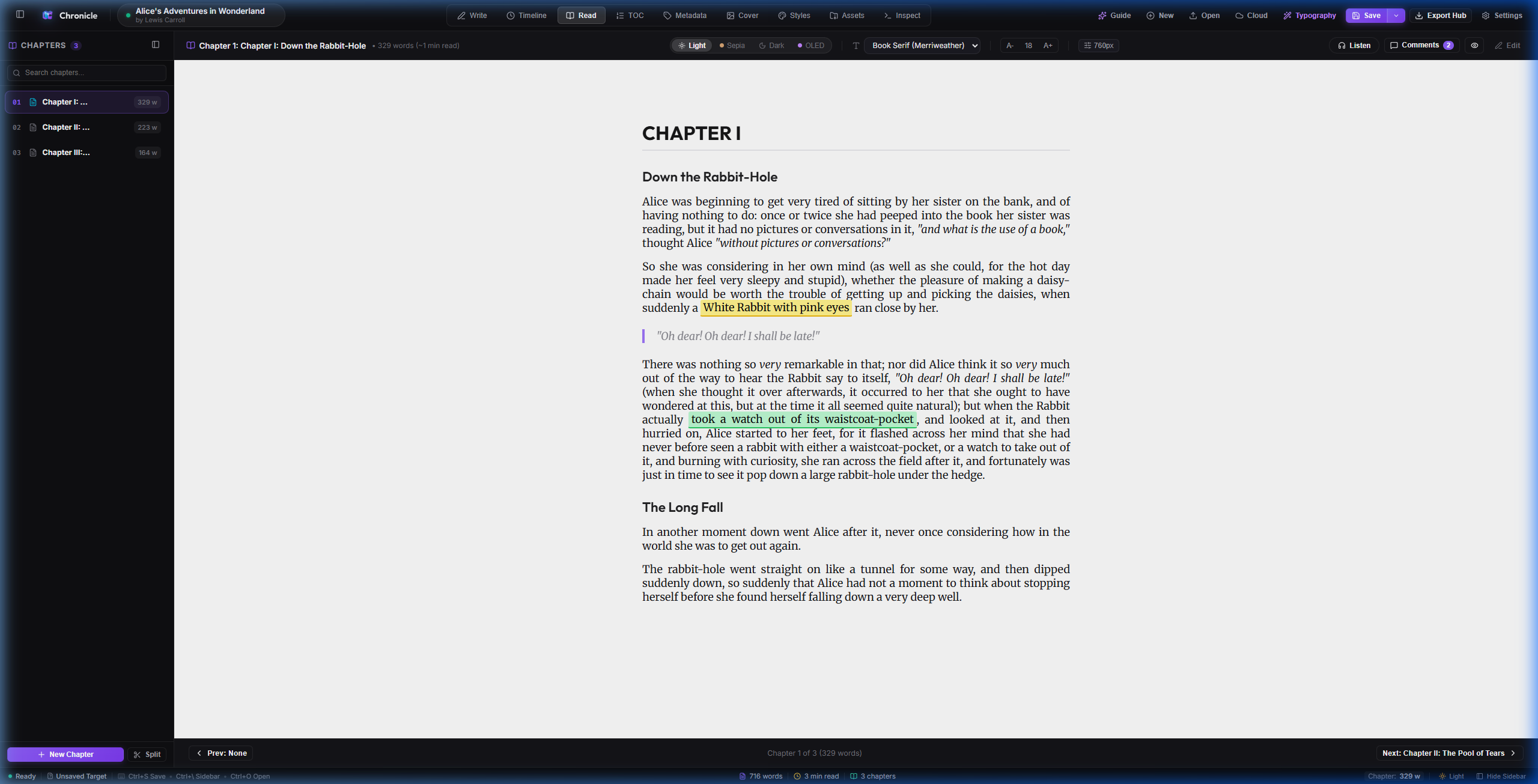
Click "Read" to switch to a publication-accurate reading mode. Adjust page widths from 560px to 1080px, select serif or sans book typefaces, and audit page flow with chapter progress indicators.
Figure 8.1: Reader mode view displaying warm sepia paper tone, elegant typography, and reading progress indicators.
2. Offline Kokoro Neural Text-to-Speech
Listening to your manuscript read aloud is the single most effective way to catch awkward sentence rhythms, repeated words, and dialogue stumbling blocks. Chronicle includes built-in neural voice audio powered by Kokoro running 100% on-device via WebGPU and WebAssembly. No text is ever sent to external cloud APIs.
3. Built-In Graphic Book Cover Designer
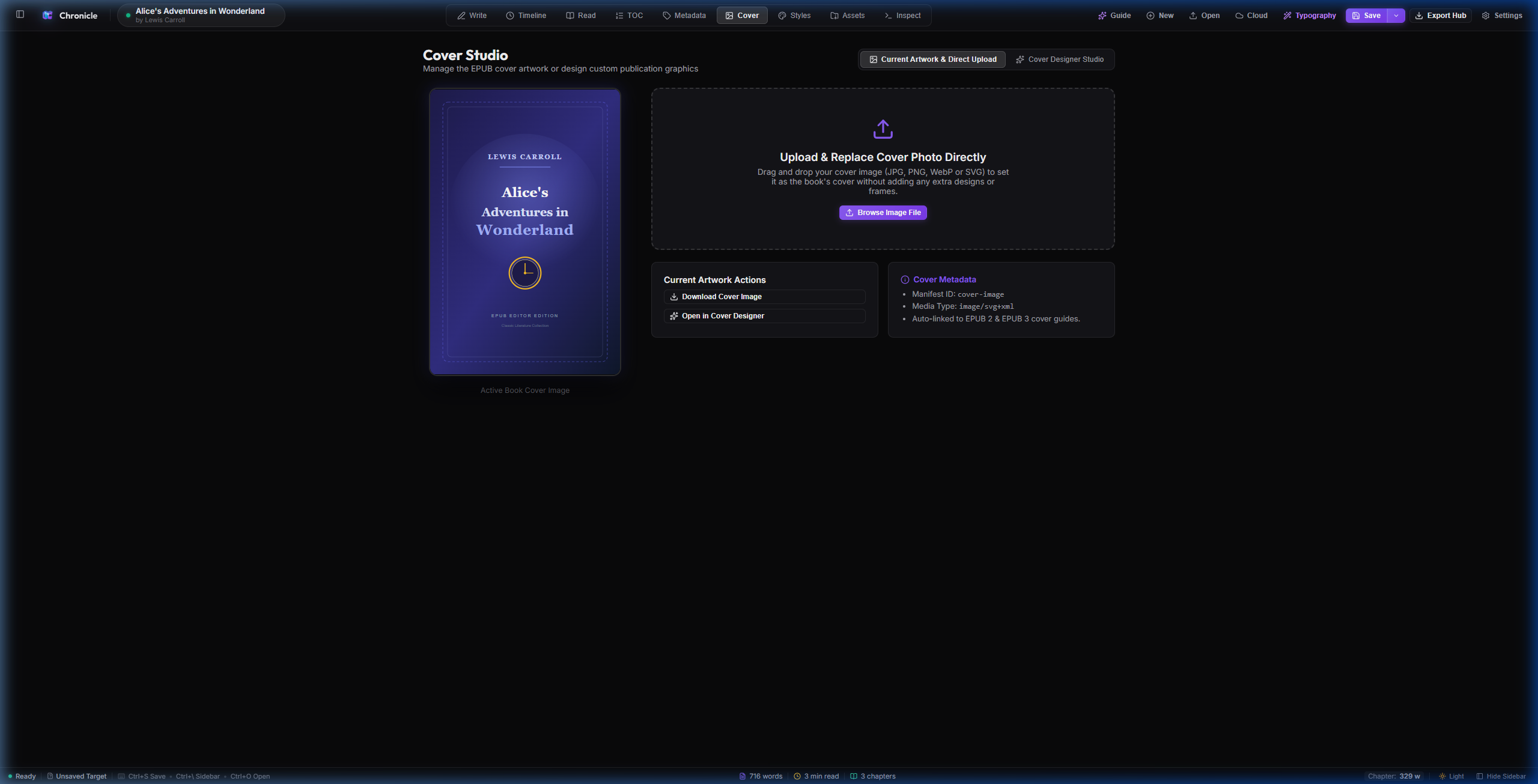
Click "Cover" in the top navigation to design publication-quality ebook covers directly inside Chronicle without launching external graphics software.
Figure 8.2: Built-in Book Cover Designer showing title typography controls, genre emblems, color palettes, and high-resolution export.
Chapter 10
Publication & Multi-Format Export Hub
Print-ready PDFs, valid EPUB 3, Shunn DOCX, and project archives
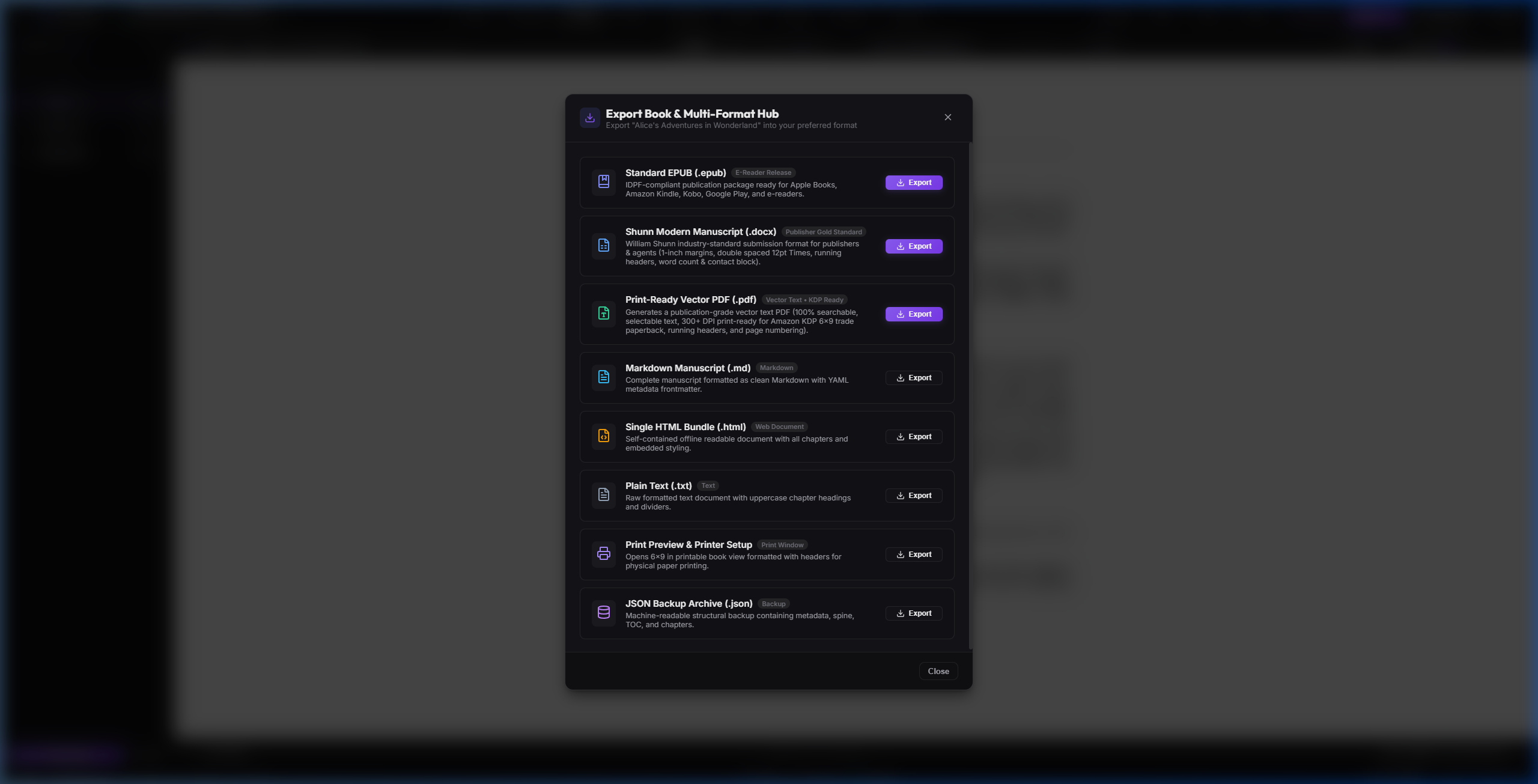
Click the "Export Hub" button in the header toolbar to access Chronicle's publication center. You can generate bookstore-ready files tailored for both digital distribution and physical printing press output.
Figure 9.1: The Export Hub dialog, offering one-click publication targets for PDF Book Typesetting, Standard EPUB 3, Industry Shunn DOCX, and Project Backups.
Print PDF Typesetter
Exports print-on-demand PDFs configured for standard trade sizes (6x9, 5.5x8.5, A4, Letter). Features automated mirror margins, running headers, full chapter illustration support with captions and aspect-ratio scaling, and vector data tables with automatic column widths and multi-page break continuation.
Standard EPUB 3
Produces verified, reflowable EPUB 3 ebooks that pass EpubCheck validation and render flawlessly on Amazon Kindle, Apple Books, Kobo, and Google Play.
William Shunn DOCX
Generates a submission-ready Word file formatted strictly to the industry-standard William Shunn manuscript guidelines required by literary agents and traditional publishers.
Chronicle Project (.chronicle)
Backs up your complete creative world—manuscript chapters, character dossiers, sensory locations, timeline events, and cover artwork—in an open ZIP archive.
Configurable Print PDF Settings & Layout Setup
Clicking "Print-Ready Vector PDF (.pdf)" in the Export Hub opens the PDF Book Typesetting & Print Setup modal, where you can fine-tune every aesthetic and structural detail of your physical book before exporting or printing:
Include Cover Page (includeCover): Embeds your graphic book cover (from the Cover designer or imported) as the first full-bleed page of the book.
Automatically Add Chapter Titles (includeChapterTitles): Automatically typesets standardized chapter headings (e.g., Chapter 1: Down the Rabbit Hole) at the start of each chapter. Disable if your manuscript drafts already contain custom stylized headings in the body.
Include Decorative Ornament (includeOrnament): Toggles the classic ornamental flourish (~ • ~) centered below chapter titles and at scene break dividers.
Include Publish Date (includePubDate): Controls the inclusion of the publication year and publisher imprint line on the title and copyright front matter page.
Table of Contents Position:
None: Suppresses the TOC entirely for novellas, poetry, or minimalist layouts.
Start (Front Matter): Generates an elegant TOC preceding Chapter 1 with classic dot leaders (. . . . .) and exact right-aligned Arabic page numbers, calibrated so Chapter 1 starts on Page 1.
End (Back Matter): Typesets the Table of Contents at the end of the manuscript as back matter.
Trim Sizes & Typefaces: Choose between standard 6" × 9" Trade, 5.5" × 8.5" Digest, A4, or US Letter, with Times Roman serif or Helvetica sans-serif typography.
Print Preview vs. Direct Vector PDF: Click "Print Preview" to inspect page geometry and margins in your browser's print dialog, or "Export Vector PDF" to generate an immediate print-on-demand vector PDF file. All selections persist across sessions.
Zero-Leakage Export Guarantee
All author review comments, editorial notes, and temporary marks are automatically stripped during publication exports, guaranteeing that your final published PDF, EPUB, or DOCX files are pristine and professional.
Chapter 11
Keyboard Shortcuts & Power User Cheatsheet
Every essential global keybinding to accelerate your authoring flow
Chronicle provides global desktop shortcuts to keep your hands on the keyboard and out of nested menus:
Shortcut
Action
Scope
Alt+M
Toggle Minimalist Mode (conceals toolbars and status bar)
Global
Alt+Z
Toggle Typewriter Zen Mode (zero UI deep-work immersion)
Global
Esc
Quick Exit from Zen Mode / Close any open modal dialog